
Every word timed
Click a word to hear it. A correction keeps each word's time.
Transcript editorNow available
KolWrite, the transcription app inside KolHive, opens every transcript in an editor where each word is tied to its moment in the recording. Click a word and the audio plays from there; type a correction and the timing stays where it was. When a line is credited to the wrong person, you change the speaker from that word on. In the Advanced Editor the transcript becomes captions on a timeline, one lane per speaker, and you drag a line to the right lane or pull its edges to where the sentence really starts and ends.
Free for macOS, Windows, Linux and the web. Start demo
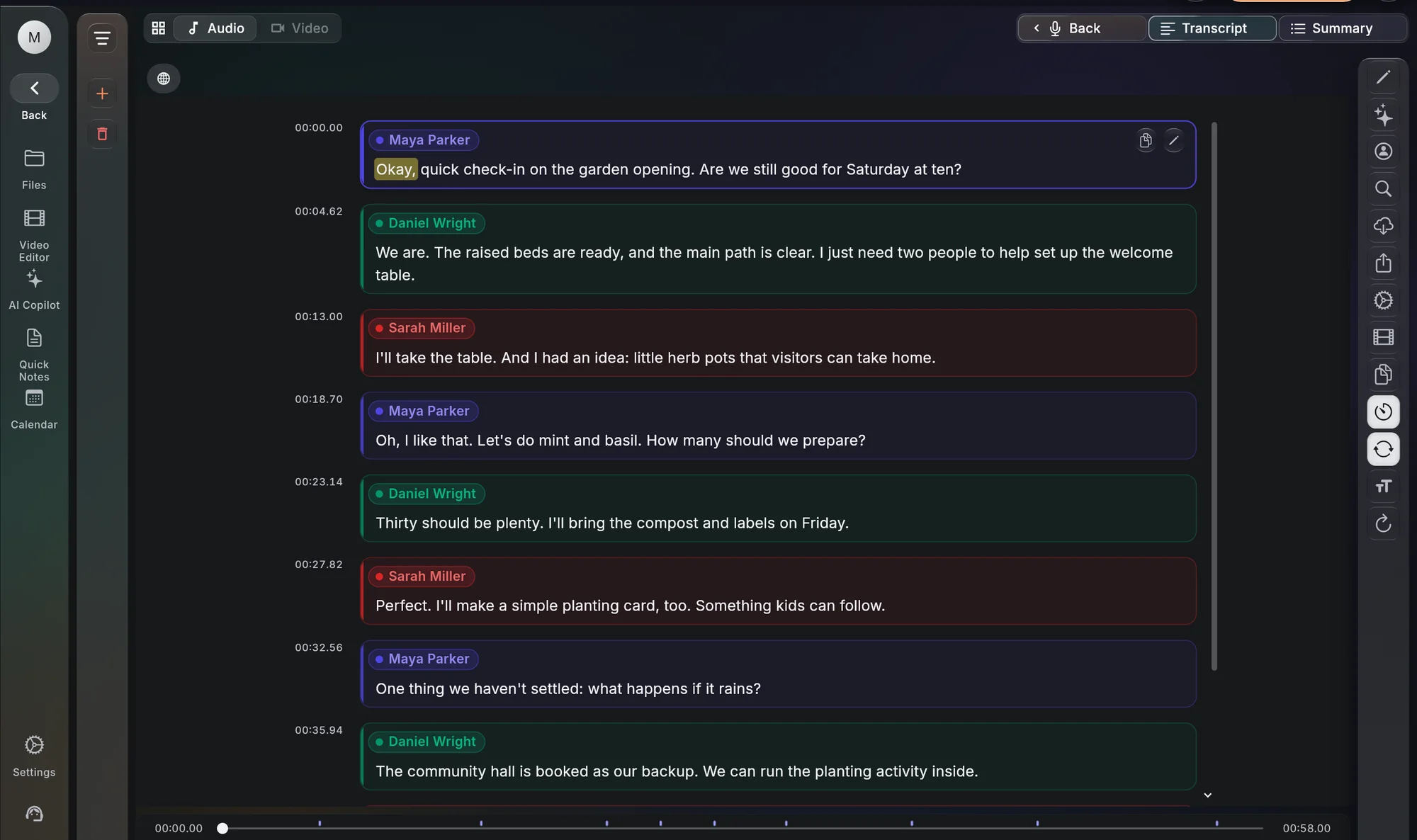
Click a word to hear it. A correction keeps each word's time.
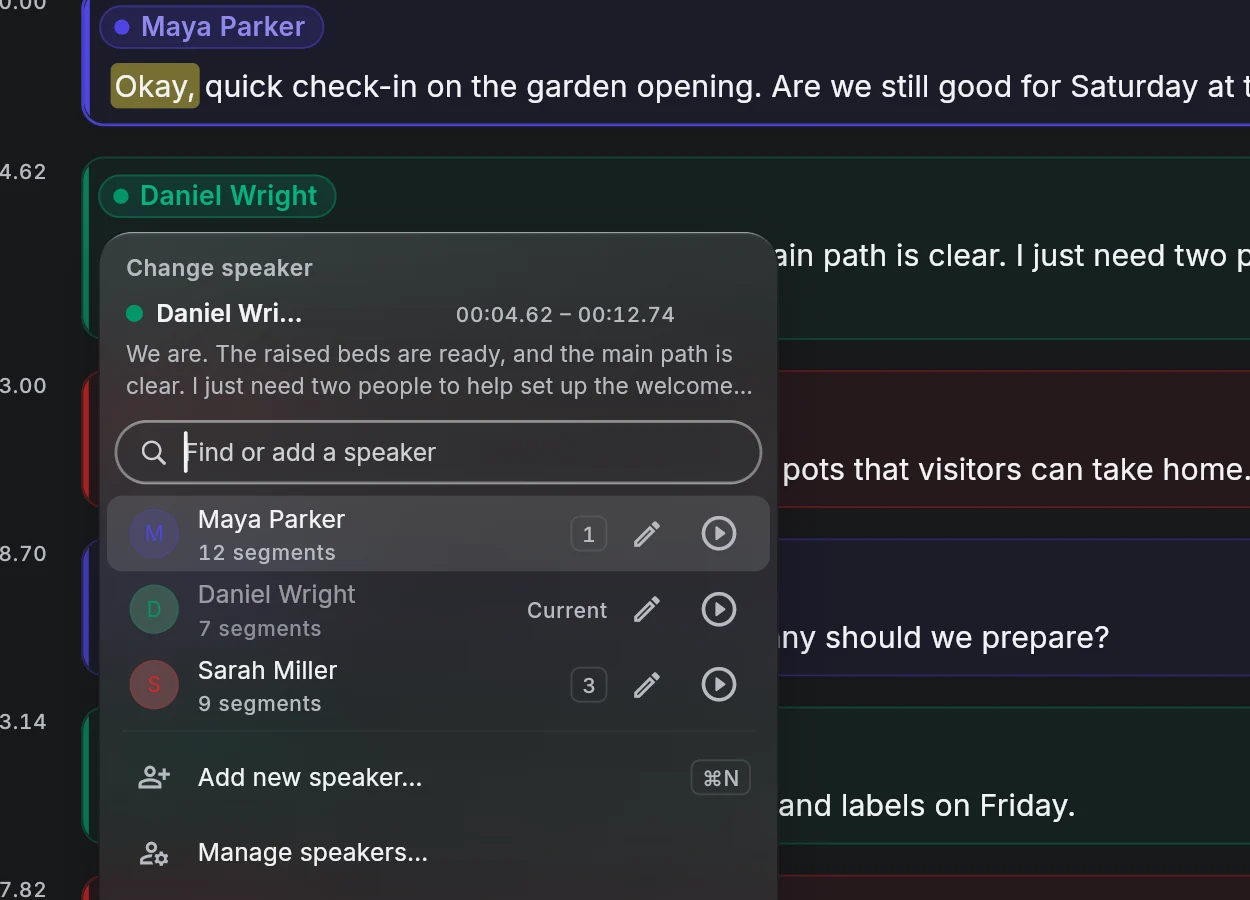
Rename, merge, pick a colour or add a photo.
Drag a line's edges, or a single word, on a timeline that snaps.
Each change is one step in the undo history, and versions are kept.
Automatic speaker separation gets most lines right. The editor is built for the rest, like the podcast where the host's short replies were credited to the guest.
Put the cursor where the other person starts talking and press Enter. Pick who speaks from there, and the rest of that passage moves to them.
Rename Speaker 2 to Dr. Ellis and every line follows. If two speakers end up with the same name, the editor offers to merge them.
One voice split into two speakers? Merge them. Words and timing do not change.
KolWrite can remember each person's name and photo, synced across your devices, and offer them in the next transcript with one tap. Recognising people by voice is a separate switch, worked out on your device.
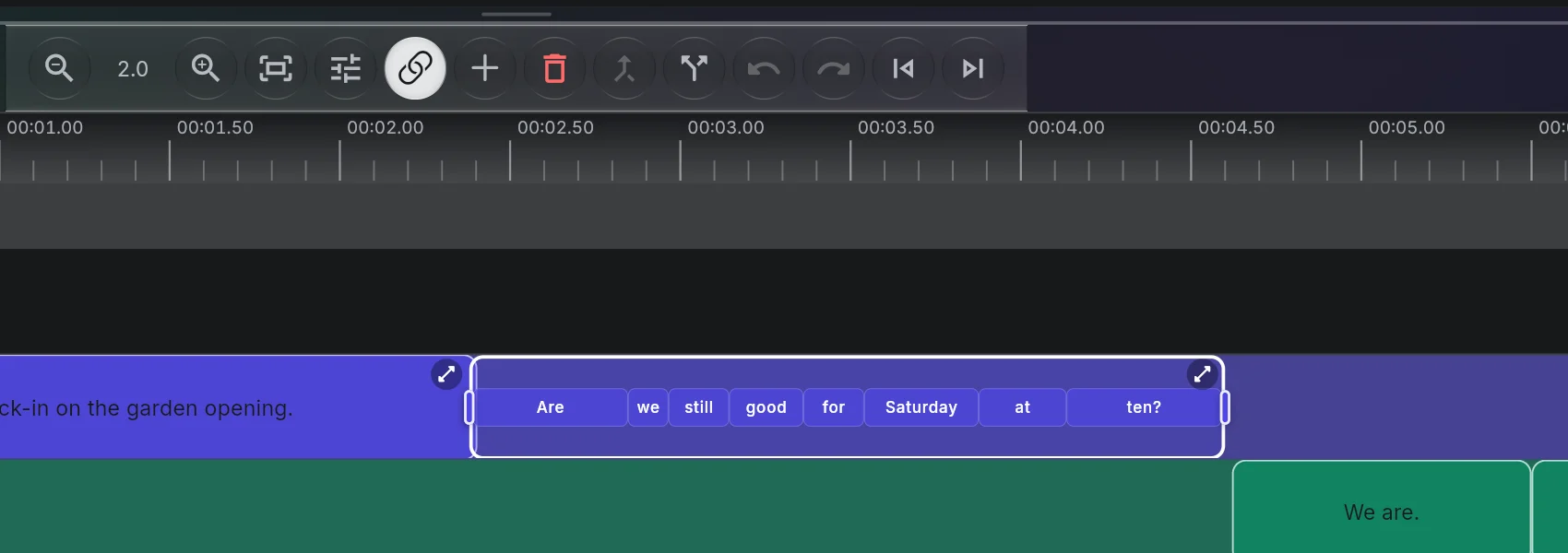
Subtitles and clips depend on timing as much as on text. The Advanced Editor shows the transcript on a timeline under the recording, with a lane for each speaker.
Pull the start or end of a line to where the sentence really begins and ends. A guide line shows where it will snap.
Select a word and drag its handles. A magnified view opens above the timeline for small moves.
Split a long line at the playhead or between two words, or merge short lines into one.
Drag a line up or down onto the lane of the person who said it.
A lawyer who corrects a client's surname in one hearing should not have to correct it again in the next one.
Before transcribing, set how many people speak, add their names, and list the terms and spellings the recording uses. The prompt can be kept for your next files.
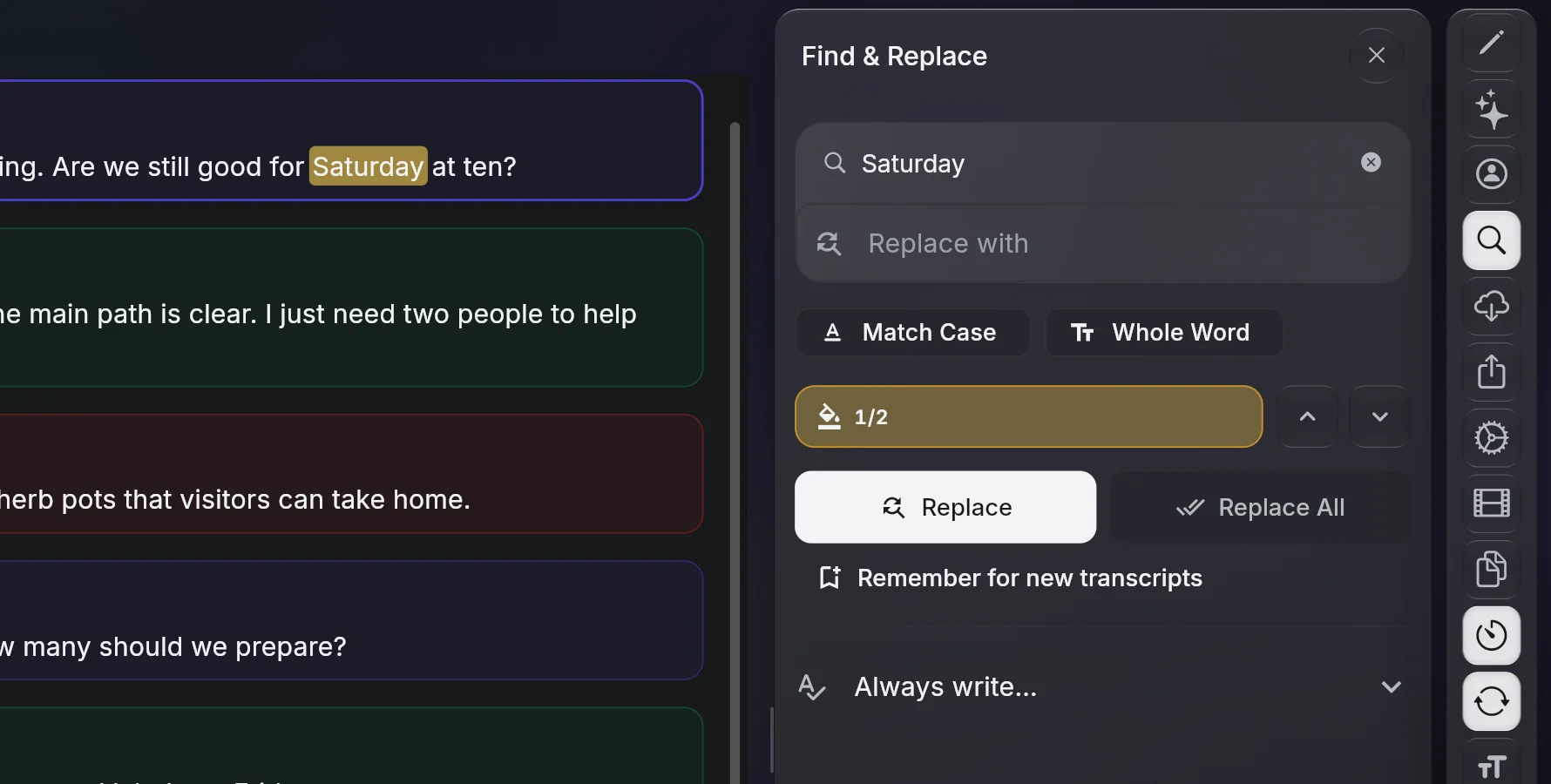
Fix every place a word was misheard, in one pass.
Spelling rules replace a word or phrase in new transcripts, and the words keep their timing. A rule can be applied to the open transcript too.
If you agree, KolWrite learns the names and corrections you use. They stay on your devices and sync between them end-to-end encrypted.
Set the number of speakers, their names and any unusual terms.
Click a word to hear it, and correct the text as you go.
Change the speaker from a word, rename speakers, or merge two labels.
In the Advanced Editor, drag lines and words to the right moment, then export or open the video editor.
Yes. Put the cursor at the word where the other person starts and press Enter, or use Change speaker. In the Advanced Editor you can also drag the line onto that speaker's lane.
No. Each word keeps its time, so playback, subtitles and clips still line up after you fix it.
Yes. In the Advanced Editor, select the word and drag its handles. Whole lines can be trimmed at either end, split or merged.
Add it to the prompt before you transcribe, or add a spelling rule under Always write… so new transcripts use your spelling.
Word (DOCX), PDF, plain text, SRT and VTT subtitles and JSON, with or without speaker names. You can also make a video with the captions burned in.
Yes. Transcripts sync through your account, and earlier versions stay in the version history.
Download it for your computer or open it in the browser. One free account for KolHive, KolChat and KolWrite.